Your first world
This guide walks you through setting up a world from scratch — from creation to your first connected entities.
Video walkthrough — Creating your first world (2 min 30 sec)
World creation options v6.0
When you click + New World from your dashboard, you'll see three paths:
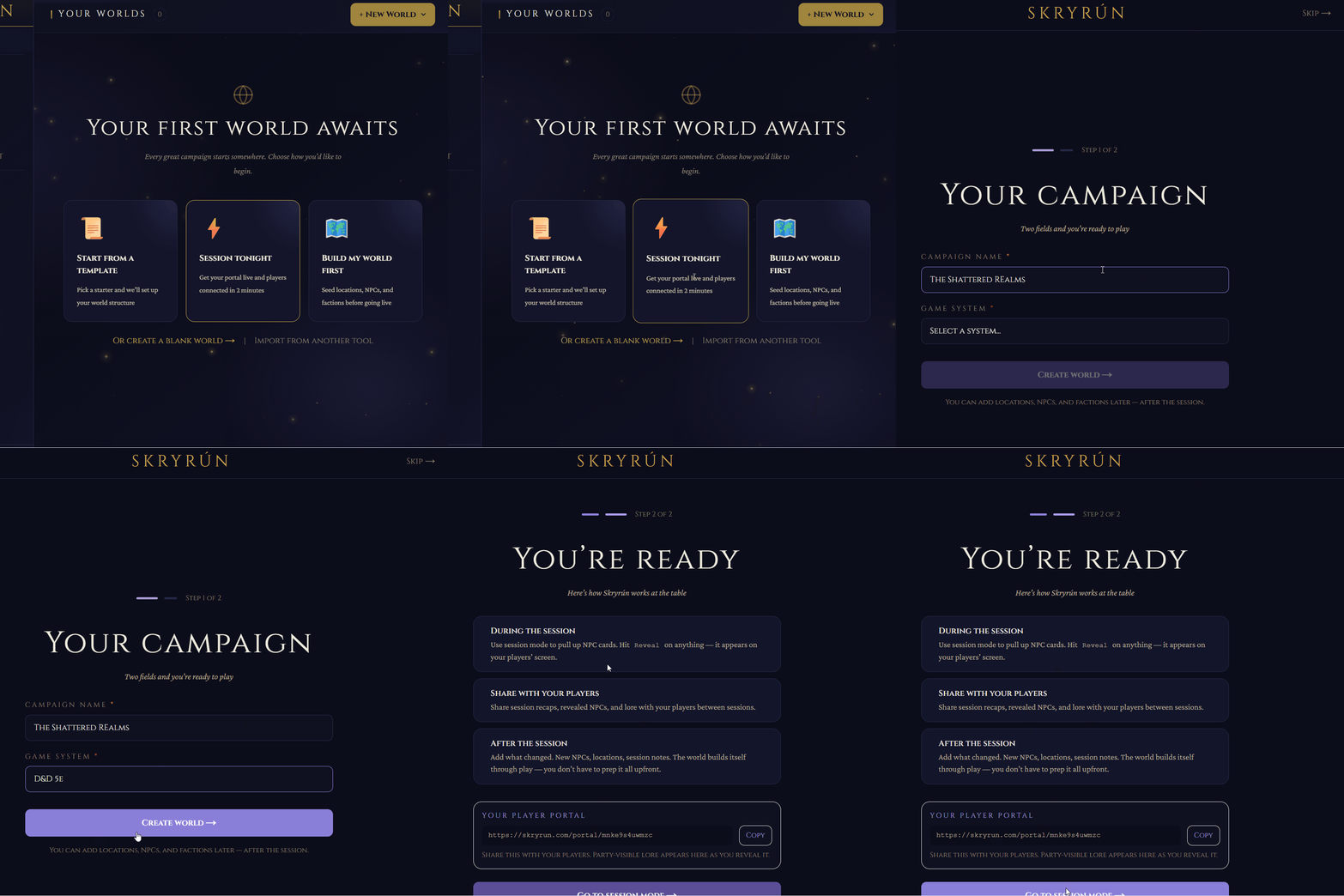
Record: click + New World on the dashboard — show all three tabs, ideally with Quick Build active and the name/genre fields visible
| Path | Best for |
|---|---|
| Quick Build | Start with a name and genre, fill in details as you go |
| Template | Pick a pre-built world template with starter entities |
| Import | Bring in content from WorldAnvil, LegendKeeper, Kanka, or Markdown files |
If you're migrating from another tool, check the importing guide — Skryrún can pull in your existing world data.
World settings
After creation, you can configure your world in World Settings:
- Theme color — affects the accent color throughout your world's UI
- Genre tags — help categorize your world on the dashboard
- Calendar system — choose a preset (Gregorian, Harptos, custom) for in-world dates on your timeline
- Portal visibility — control whether players can access a read-only portal of your world
Building your entity tree
Skryrún has 20 entity types. Each has the same underlying structure but affects how the entity is displayed, filtered, and used in session tools.
| Type | Use it for |
|---|---|
| Location | Cities, dungeons, regions, buildings, planes |
| NPC | Named characters, recurring antagonists, historical figures |
| Faction | Organizations, guilds, governments, cults |
| Deity | Gods, demigods, patron spirits |
| Species | Playable ancestries, monstrous peoples, unique lineages |
| Culture | Languages, religions, traditions, legends, laws, cuisine |
| Craft | Magic systems, smithing traditions, alchemy, enchanting |
| Vehicle | Ships, airships, mounts, wagons, war machines |
| Condition | Curses, diseases, blessings, poisons, magical afflictions |
| Monster | Stat-tracked creatures and encounter subjects |
| Item | Artifacts, weapons, relics, quest items |
| Spell | Homebrew spells, rituals, magical phenomena |
| Event | Battles, disasters, founding moments, prophecies |
| Session | Individual play sessions and their summaries |
| House Rule | Rule modifications specific to your campaign |
| Encounter | Structured combat or scene setups |
| Hook | Adventure seeds and player-facing plot hooks |
| Secret | Information known only to certain parties |
| Clue | Physical or spoken evidence players can find |
| Custom | Anything that doesn't fit the above |
Each entity has an article (rich text), metadata (tags, visibility, cover image), and optional blocks (structured data panels). See Entity types for descriptions of all 20 types.
Connecting entities
The knowledge graph grows automatically as you create connections:
- Wikilinks — type
[[Entity Name]]in any article to create a clickable cross-reference. If the entity doesn't exist yet, Skryrún creates a stub you can fill in later. - Relationships — add explicit labeled edges between entities: "allied with," "member of," "located in." These appear in both entities' relationship panels and as labeled edges in the graph.
- Tags — freeform labels for filtering, searching, and visibility rules.
Start by creating three or four entities and linking them with wikilinks. Open Graph in the sidebar — even a small world looks interesting connected, and it immediately shows you what is missing.
Troubleshooting
The + New World button isn't on my dashboard. Check your current world count. Chronicler accounts can have one world — if you already have one, you'll need to upgrade to Weaver for additional worlds or archive your existing world first.
I chose a template but the starter entities don't look right for my setting. Templates are starting points, not constraints. Delete any entity you don't need, rename the ones you want to keep, and add your own. Nothing in a template is locked.
World Settings options look different from what the guide describes. Some settings (like Calendar system and Portal visibility) are only visible after you have an active campaign attached to the world. Create a campaign under World Settings → Campaigns and the relevant options will appear.
I imported content but some entities are missing. Large imports can take a moment to finish indexing. Wait 30 seconds and refresh the entity browser. If entities are still missing, check the import summary screen — it lists any entries that could not be parsed or were skipped due to format issues.
Next steps
- Five-minute quickstart — build your first connected world end-to-end
- Key concepts — the mental model behind entities, wikilinks, and visibility
- Wikilinks and the graph — creating connections and reading the knowledge graph
- Visibility and secrets — controlling what players see
- Importing your world — migrating from World Anvil, Obsidian, or other tools